How to Share a VPN from Your Phone — R-VPN
How to Share a VPN from Your Phone
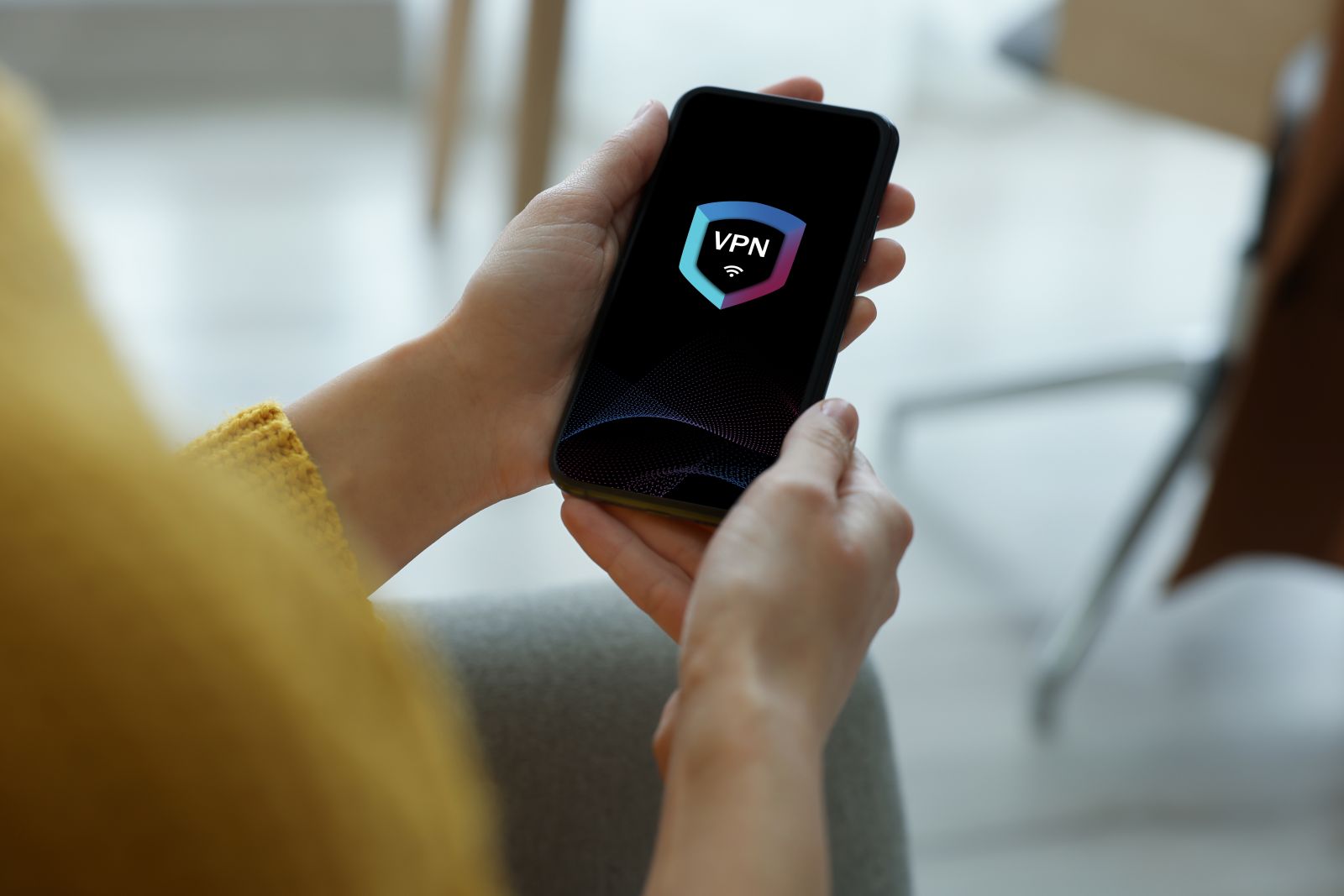
There are several ways to connect devices to a VPN through your phone. One of the simplest options is to use a mobile hotspot on your phone and connect the device to that hotspot, then set up a VPN on the phone.
Take advantage of our VPN servers (virtual private networks) for secure access to domestic web resources and foreign sites such as Netflix, Amazon, ChatGPT, without any risk to the safety of your confidential data. With a subscription fee of just 4 dollars, you will be able to use our apps and effective encryption protocols to preserve your privacy and peace of mind. In addition, we offer low prices and a free trial period — just register right now! Our specialists will help you choose the most effective security system and set up reliable data transfer protocols such as IKEv2, L2TP/IPsec, OpenVPN, Shadowsocks and WireGuard. Do not wait for your data to leak — contact us right now to get the best protection at a great price!
Enjoy secure and unlimited web browsing with our VPN service! Our software is compatible with various platforms — Android, Windows, Linux and macOS, iOS — to protect your online activity and personal data on all devices. Our team of experts is always ready to help you download and configure the software if you need assistance. Get big discounts on our Telegram channel (https://t.me/rvpn_info) or in the Telegram chat (https://t.me/rvpn_chat), where you can stay up to date with the latest news and get answers to any questions as quickly as possible! Register now to protect yourself from cyberattacks and get fast access to any online resource of your choice, regardless of sanctions and other restrictions!
How to Share VPN Internet on Android
To share VPN internet on Android, follow these instructions:
- Open your phone settings and find the "Personal hotspot" or "Mobile hotspot" section.
- Turn on "Mobile hotspot" and configure it if required.
- Connect the device you want to connect to the VPN to this hotspot.
- Set up the VPN on your phone, following your provider's instructions.
- Once the VPN is set up on the phone, all devices connected to the hotspot will use the connection.
On an iPhone the setup process will differ slightly, but the general principle remains the same — you need to use the mobile hotspot and set up the VPN on the phone. If you run into difficulties, it is recommended that you refer to your provider's instructions or their support service. After completing these steps, all devices connected to your Android device will use the VPN connection.
Sharing Mobile Internet via Wi-Fi
Sharing mobile internet via Wi-Fi is a convenient way to connect other devices to the internet through your phone when there is no access to a router or wired internet. To share mobile internet via Wi-Fi, follow these instructions:
1. Open your phone settings and find the "Mobile data" or "Hotspot" section.
2. Turn on the "Wi-Fi hotspot" or "Personal hotspot" (on different phone models this may be called differently).
3. Configure the hotspot, including the network name and password (if required). These settings are usually found in the "Configure hotspot" or "Wi-Fi hotspot settings" section.
4. On the device you want to connect to the internet, open the Wi-Fi menu and find the network name you created on the phone. Connect to this network using the password you set in the previous step.
5. Once the device is connected to the network, it will use the mobile internet from your phone.
Note that sharing mobile internet can consume a lot of traffic, especially if several devices are connected, so it is recommended that you monitor your traffic usage and choose a suitable plan from your mobile carrier.
Sharing Mobile Internet via Bluetooth
Sharing mobile internet via Bluetooth can be useful if you do not want to use Wi-Fi or when the device to which you want to provide internet access has no Wi-Fi module. To share mobile internet via Bluetooth, do the following:
- Open your phone settings and find the "Bluetooth" section.
- Turn on Bluetooth on your phone.
- Find the device to which you want to provide internet access in the list of Bluetooth devices and connect to it.
- After a successful connection, open the mobile data settings on your phone and find the "Hotspot" section.
- Turn on the "Bluetooth hotspot" (or "Personal Bluetooth hotspot", depending on your phone model).
- On the device to which you want to provide internet access, open the Bluetooth settings and find the connected device (in your case this is the phone).
- Tap the device name and select "Use for internet access" (or a similar option).
After completing these steps, the device to which you provided internet access will use the mobile internet available on your phone. Note that using Bluetooth to share the internet can be somewhat slower than using Wi-Fi, but it can also be more secure and reliable if you are in a place with a high level of Wi-Fi signal interference.
Mobile Internet via USB
Sharing mobile internet via a USB connection can be useful when you want to use a more reliable and faster connection than Bluetooth, but the device to which you want to provide internet access has no Wi-Fi module. To share mobile internet via a USB connection, do the following:
1. Connect your phone to the computer using a USB cable.
2. Notifications related to the USB connection should appear on your phone. Tap them and select "File transfer" (or a similar option).
3. After that, establish a connection between the phone and the computer. Depending on your computer's operating system, you may need to install drivers for your phone.
4. On your phone, open the mobile data settings and find the "Hotspot" section.
5. Turn on the "USB hotspot" (or "Personal USB hotspot", depending on your phone model).
6. After a successful connection, open the network settings on your computer and find the connection to the phone.
7. Connect to this connection, and the device to which you connected your phone will start using the mobile internet from your phone.
Note that using a USB connection to share the internet can be the fastest and most reliable method, but it requires a computer with a USB port. Also keep in mind that some mobile carriers may prohibit sharing the internet via a USB connection, so it is recommended that you check the user agreement and/or consult your carrier for more detailed information.
How to Share VPN Internet via Wi-Fi on Android
To share VPN internet via Wi-Fi on Android, do the following:
- Make sure you have a VPN client installed on your Android device. The most common VPN clients for Android include NordVPN, ExpressVPN, Surfshark, CyberGhost and others.
- Open the Wi-Fi settings on your Android device and find the "Wi-Fi hotspot" or "Personal Wi-Fi hotspot" section. Tap it to turn on the Wi-Fi sharing feature.
- Set a password for the Wi-Fi hotspot to protect it from access by unauthorized users.
- After that, go to the VPN client settings on your Android device and connect to the desired server.
- Connect the device that needs VPN internet access to the Wi-Fi network you created on your Android device.
- The device to which you provided access to the Wi-Fi network will now use the VPN internet you set up on your Android device.
Note that Wi-Fi sharing consumes more power than connecting to mobile internet via USB or Bluetooth. Therefore, when you use this method, make sure your Android device is connected to a power source or fully charged. Also keep in mind that some mobile carriers may limit the use of the Wi-Fi hotspot for sharing the internet, so it is recommended that you check the user agreement or contact your carrier for more detailed information.